Ahmedabad, Gujarat, India
Ahmedabad, Gujarat, India
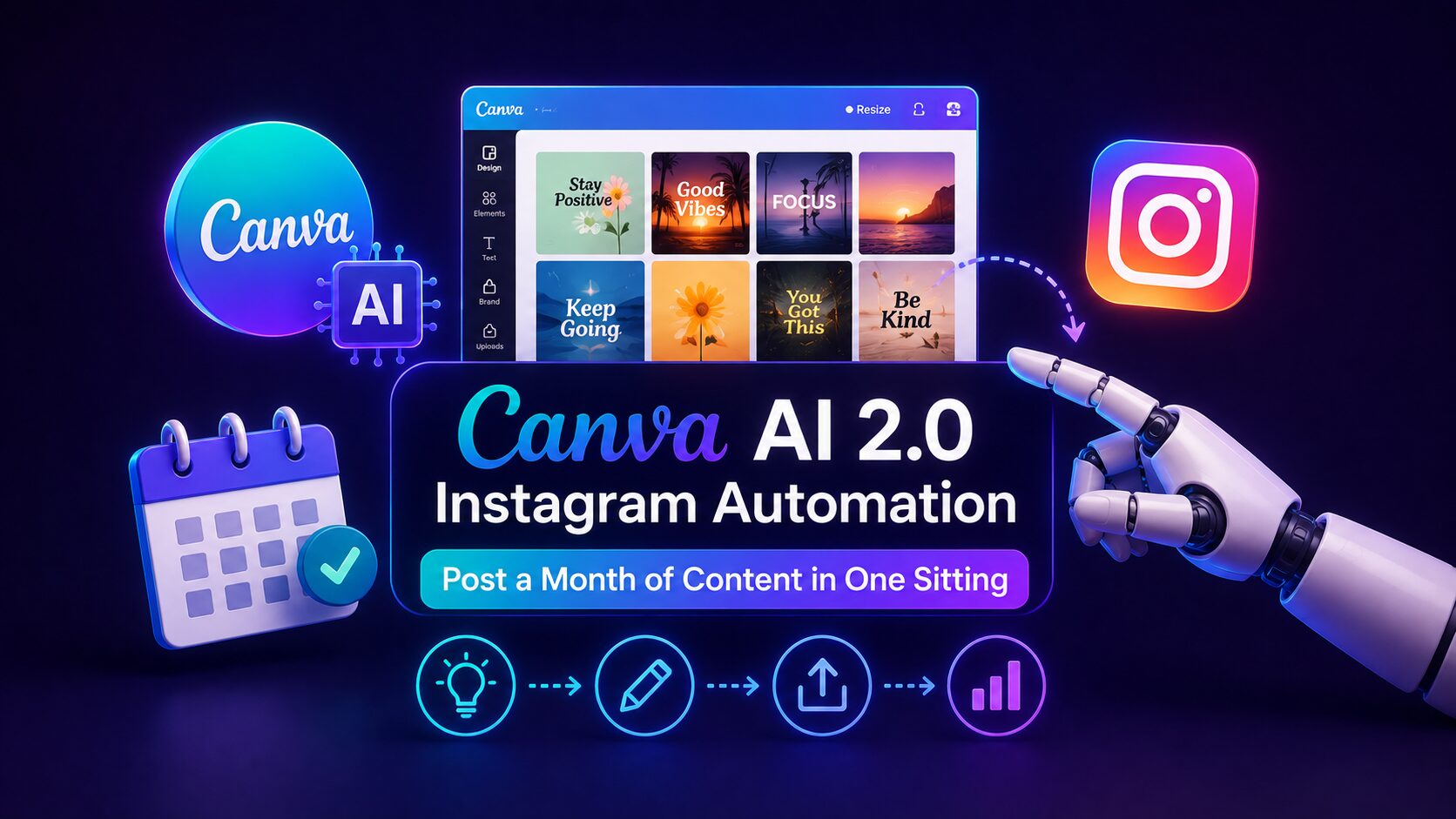
One creator planned 215 Instagram posts (43 weeks) in a single weekend using Canva AI 2.0. Here’s the exact system — plus how to turn it into $500-$10,000/month.
Disclaimer: This content is for educational and informational purposes only. Earnings and results vary by individual. Always conduct your own due diligence.
Let me ask you something.
Do you spend every Sunday night staring at a blank Canva template, wondering what to post for the next seven days?
You are not alone.
Most creators and small business owners treat Instagram like a daily emergency. Wake up. Panic. Scramble to find a photo. Write a caption that feels rushed. Post. Repeat. It is exhausting, inefficient, and it is killing your consistency.
That stops today.
Canva AI 2.0 Instagram automation turns the entire process upside down. Instead of creating posts one by one, you can now plan, design, and schedule an entire month of content in a single sitting. You talk to Canva. It listens. Then it goes to work.
This guide shows you exactly how this system works, step by step. You will learn the new features that make batch creation possible, the tools you need alongside Canva, and the exact workflow to reclaim your evenings.
By the end, you will have a system that posts consistently while you focus on everything else.
Before Canva AI 2.0, the platform was a design tool. You opened it. You clicked around. You made something. You closed it.
That is not what Canva is anymore.
At the Canva Create 2026 launch event, Canva unveiled Canva AI 2.0 as an “agentic AI creative platform” built specifically for content creators. This is not a minor upgrade. It is a complete rethinking of how design works.
Here is the shift you need to understand.
In 2024 and 2025, AI was “generative.” You gave it a prompt. It produced a static image. Then you did the rest. In 2026, Canva has transformed AI into something “agentic.” Instead of just generating an image, Canva AI 2.0 orchestrates entire workflows. It selects layouts. It chooses text hierarchy. It pulls brand assets from memory. It organizes full campaigns without you touching a single slider.
What does this mean for automating your Instagram content?
It means you can now say: “I need a 5-post Instagram campaign for our summer collection, following our brand colors.” And the AI delivers five finished, on-brand posts.
The old way: Open Canva. Choose a template. Change the text. Adjust the colors. Download. Repeat four times. Total time: 90 minutes.
The Canva AI 2.0 way: One conversation. Five finished posts. Total time: 5 minutes.
That is not a small improvement. It is a complete workflow replacement.
Automating your Instagram content rests on three new features. Each one solves a specific problem that used to take hours.
You no longer need to be at your computer to create content.
Canva’s new scheduling system allows you to set up tasks that run automatically, even when you are offline. You can pre-set workflows that run on schedule, and Canva AI handles the rest.
Here is a real example. A social media manager can schedule a batch of posts to be created every Friday. The system adjusts the content for different platforms and translates it into multiple languages when needed. Once set up, the process continues without manual input.
With this workflow, you can say: “Generate five Instagram posts about summer skincare tips and schedule them for 8 PM every night next week.” The AI works in the background. You walk away. The content is ready when you return.
One of the biggest time drains in social media management is maintaining visual consistency.
Canva AI 2.0 introduces “Living Memory.” The platform now remembers your brand guidelines, preferred layouts, typical workflows, and even the time of day you usually post to Instagram. Over time, it learns.
You set up your Brand Kit once. Colors, fonts, logos. Then every design you create automatically pulls the right brand assets. With a single click, Canva pushes brand colors and fonts across every slide in a carousel. Not one slide at a time.
This eliminates the “which font was that again?” moment entirely. Your templates are pre-locked. Your brand is baked in. Every automated post looks like it was made by a professional designer.
Content ideas do not appear out of thin air. But chasing them down takes time you do not have.
Canva AI 2.0 now integrates directly with Slack, Gmail, and Notion. You can ask Canva to extract the hottest topic from your team’s Slack discussion and automatically format it into an engaging Instagram post. Or you can turn a customer FAQ email into a carousel series with one command.
The built-in web research feature searches for industry trends, competitor updates, and viral topics in the background, then imports structured information directly into your design drafts.
The result is that your content is not just automated. It is intelligent. The AI finds what is trending. It structures the information. It creates the post. You just approve.
Now here is the part most guides skip entirely — and it is the most important.
Let me walk you through the exact steps to set up your automated content system for a month of posts.
Open Canva and go to Brand Hub (requires Canva Pro). Create a brand for your account. Add your primary and secondary colors (six well-chosen colors max). Add your fonts for headlines, subheadings, and body text. Upload your logo variations. Once this is done, every design you open from now on will have your brand pre-loaded.
Before you automate, you need a plan. Decide on 3 to 5 recurring themes for your Instagram account. For example: educational posts, behind-the-scenes, customer testimonials, product highlights, and user-generated content. Write these down. They will become your prompts.
This is where the system truly shines.
Open Canva and start a conversation with the AI. Type something like: “Create 10 Instagram posts for my coffee shop. Topics: latte art tutorials, customer reviews, and weekly specials. Use my brand colors. Make them carousel style.”
The AI generates 10 finished designs. Each one follows your brand guidelines. Each one is ready to post.
For a full month of content, use Canva’s Bulk Create feature.
First, create a spreadsheet with your post data. Columns might include: date, topic, image description, caption text, and call to action.
Second, design a master template in Canva. Place text placeholders and image placeholders exactly where you want them.
Third, go to Apps → Bulk Create in Canva. Upload your spreadsheet. Connect your data to the placeholders. Click “Generate designs.”
Canva creates every post automatically. One spreadsheet. One template. Thirty posts. Zero manual design.
Canva’s Content Planner is often overlooked, but it is a built-in scheduler that saves hours.
Open any completed post. Click Share → Schedule. Choose Instagram. Pick the date and time. Click confirm.
Repeat for each post. Or use the bulk scheduling feature in Canva Pro to schedule multiple posts at once.
Here is the part that feels like magic.
Once your schedule is set, Canva AI continues working. It can monitor engagement on your published posts and adjust future content recommendations based on what performs best. It can reschedule underperforming posts to different time slots. It can even suggest new topics based on trending conversations in your niche.
You set the system up once. It runs all month.
Automating your Instagram content is powerful by itself. But when you combine it with ChatGPT, you unlock industrial-scale content production.
One librarian used this exact workflow to plan 43 weeks of Instagram posts — Monday through Friday — in a single weekend. 215 total posts. Zero weekly scramble. Here is how they did it.
First, they decided on weekly themes. Monday: book recommendation. Tuesday: research tip. Wednesday: digital literacy tip. Thursday: emoji game. Friday: feel-good post.
Second, they used ChatGPT to batch-create 43 unique entries for each theme. The output was formatted as a spreadsheet, ready for direct import into Canva.
Third, they made one branded template in Canva for each category. Then they used Canva Bulk Create, uploaded the spreadsheet, and let Canva generate all 43 graphic versions automatically.
Fourth, they scheduled everything using Canva’s Content Planner. One sitting. 43 weeks. Done.
For your Instagram account, the same workflow applies.
Use ChatGPT to generate 30 captions, 30 image descriptions, and 30 calls to action. Paste them into a spreadsheet. Design three master templates in Canva (carousel, single image, Reels cover). Use Bulk Create to generate all 30 posts. Schedule them. Walk away.
The combination of ChatGPT for copy and Canva’s automated design and scheduling features produces weeks of content in hours.
Automating your Instagram content is not just about saving time. It is about creating capacity to earn money.
When you remove the daily grind of content creation, you free up hours for revenue-generating activities. Here is how to turn your automated Instagram presence into income.
Small business owners hate creating Instagram content. They have no time, no design skills, and no consistency. You can solve all three problems.
Charge $500 to $1,500 per month to manage a client’s Instagram account using this automated workflow. Your process: one conversation with the client to understand their brand, one spreadsheet of content, one batch creation session, and one scheduling session. Total hands-on time: 4 to 6 hours per month. Revenue: $500 to $1,500.
Create an Instagram account in a niche with high affiliate payouts: personal finance, fitness equipment, software tools, or online courses. Use automated workflows to post daily. Include your affiliate links in your bio and stories.
A personal finance account with 10,000 engaged followers can earn $500 to $2,000 per month from affiliate commissions. A fitness account with 50,000 followers can earn $3,000 to $10,000 per month from supplement and equipment affiliates.
Use automated content workflows to build an audience around your expertise. Then sell digital products: templates, guides, courses, or coaching.
One creator used Canva Bulk Create to build an Etsy store selling digital clip-art bundles. First month revenue: $568. Within a few months: $50 to $70 per day, or $1,500 to $2,100 per month. All generated from automated design workflows.
Once your automated Instagram account reaches 10,000 followers, brands will pay for sponsored posts. Rates vary by niche and engagement. A finance or business account with 50,000 followers can charge $500 to $3,000 per sponsored post.
The key to all four paths is the same. Automated content workflows handle the production. You handle the monetization.
Even with the best tools, automated content systems can fail. Here are the mistakes I see most often and exactly how to fix them.
The number one cause of bad AI output is lazy prompting.
Bad prompt: “Create 5 Instagram posts.”
Good prompt: “Create 5 Instagram carousel posts for a sustainable fashion brand targeting women 25-35. Topics: how to spot greenwashing, capsule wardrobe essentials, and ethical fabric guide. Use our brand colors: sage green and cream. Tone: educational but not preachy.”
Fix: Spend 5 minutes writing detailed prompts. It saves 30 minutes of editing.
If your Brand Kit is empty, Canva AI cannot know your style. Every post will look different. Your audience will get confused.
Fix: Spend 20 minutes setting up your Brand Kit. Colors, fonts, logos. Do it once. Never think about it again.
Canva’s scheduler is reliable, but formatting can break. Text might overflow. Images might crop unexpectedly.
Fix: Always preview scheduled posts in Canva before finalizing. Open the post in the Instagram preview mode. Check every slide.
The most successful automated accounts do not run on autopilot forever. They review performance weekly. They adjust topics based on engagement. They refresh templates every few months.
Fix: Schedule 30 minutes every Sunday to review your upcoming week of automated posts. Delete anything that feels off. Add timely content when news breaks.
AI-generated content can feel sterile. Your audience follows people, not robots.
Fix: Add one personal element to every batch. A real photo of your workspace. A genuine story from your day. A behind-the-scenes look at your process. The AI handles the structure. You add the soul.
This system refers to the ability to plan, design, and schedule Instagram content in batches using Canva’s agentic AI features. Instead of creating posts one by one, you give the AI strategic instructions, and it generates finished, on-brand designs automatically. The system can run tasks in the background, even when you are offline, and schedule posts directly to Instagram from within Canva.
Start by upgrading to Canva Pro if you have not already. The Brand Kit and Bulk Create features require Pro. Spend 20 minutes setting up your Brand Kit with colors, fonts, and logos. Define your 3 to 5 content pillars. Then practice conversational creation: type a prompt like “create 5 Instagram posts about [your niche]” and see what the AI generates. Once comfortable, move to Bulk Create for larger batches and the Content Planner for scheduling.
Earnings depend on how you monetize. Offering automation services to small business clients generates $500 to $1,500 per month per client. Affiliate marketing with an automated niche account can generate $500 to $10,000 per month depending on audience size. Selling digital products like templates or clip-art bundles has generated $1,500 to $2,100 per month for some creators. Sponsored posts on an account with 50,000 followers can bring $500 to $3,000 per post.
ChatGPT is the best partner for generating caption copy, image descriptions, and content calendars in spreadsheet format. Claude is excellent for maintaining brand voice consistency across large batches of copy. For scheduling, Canva’s built-in Content Planner works well, but tools like Buffer offer additional analytics and cross-platform publishing. For video content, CapCut provides batch processing and AI editing features.
Yes, but with realistic expectations. This system saves an enormous amount of time. A social media manager creating posts manually can produce 15 to 20 pieces per day. The same person using automated workflows can produce 50 to 80 pieces per day with better consistency and less fatigue. However, the automation does not replace strategy. You still need to know your audience, choose the right topics, and add authentic personal touches. If you are willing to invest a few hours upfront to set up your Brand Kit and templates, the ongoing time savings are dramatic.
The creators winning on Instagram in 2026 are not the ones working the hardest. They are the ones with the best systems.
Do not try to implement every feature at once.
Start with conversational creation. Generate your first 5 posts using a single prompt. See what works. Then add Bulk Create for your next monthly batch. Then add scheduling. Then add ChatGPT for copy. Build your automated content system one layer at a time.
The people who post consistently without burnout in 2026 are not superheroes. They just stopped scrambling and started scheduling.
That can be you.
All figures are sourced from publicly available reports, benchmarks, and industry data from 2026.
Leave a comment below — which tool will you test first?
P.S. — We publish one practical AI income and marketing guide every week at AICAP.in. Subscribe below — no spam, no fluff, just strategies that actually work.

Salman Shaikh is the founder and editor-in-chief of AiCap.in, an independent AI and personal finance publication based in Ahmedabad, India.
Since launching AiCap.in in April 2026, Salman has personally tested and reviewed 100+ AI tools across income generation, crypto research, content creation, and personal finance — publishing 91+ hands-on guides based on real usage, not press releases.
His approach is simple: every tool he writes about is one he has opened, tested, and either used to earn money or rejected after finding it didn’t deliver. He started AiCap.in after realising most AI content in India was either written by people who had never touched the tools, or buried in technical jargon that everyday people couldn’t act on.
His work covers AI tools for passive income, freelancing with AI, crypto research workflows, Amazon FBA with AI, and personal finance strategies built for readers in India and accessible to anyone globally looking to earn smarter with AI.
AiCap.in now reaches a growing community of readers across India and globally who want practical, jargon-free AI strategies they can implement today.
Connect with Salman: LinkedIn · X @AiCap88 · YouTube · Medium